


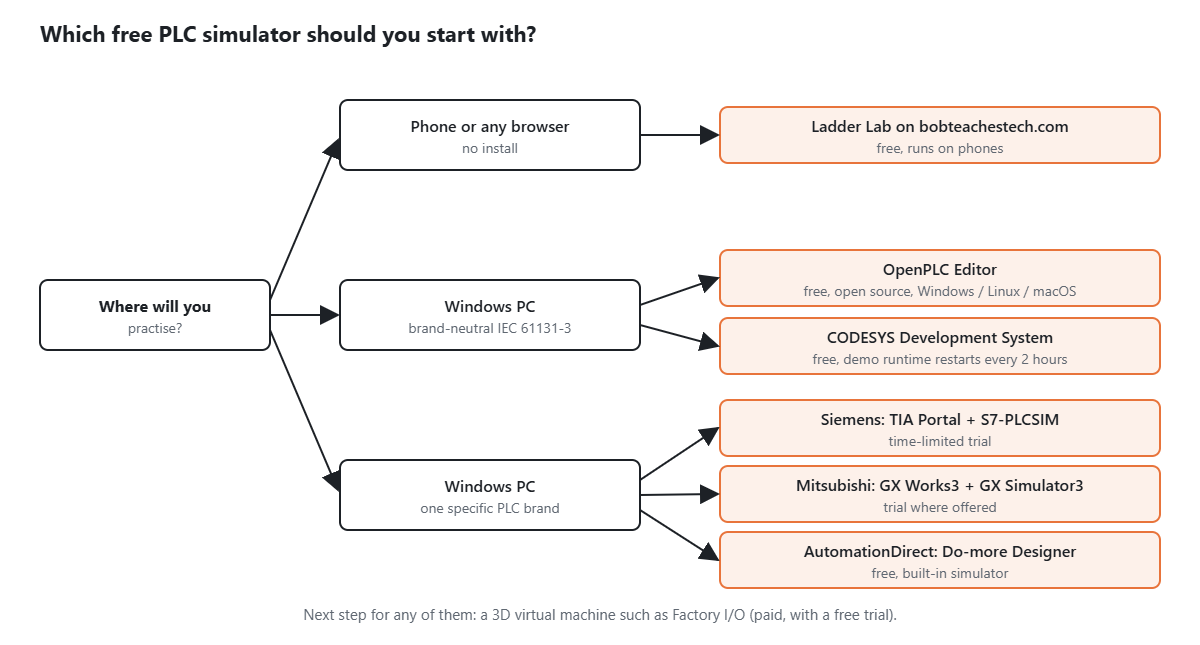
Yes, you can learn PLC programming with a free PLC simulator: browser tools such as Ladder Lab run on any phone with no install, and free desktop packages such as OpenPLC, CODESYS and Do-more Designer let you write and test full programs on a Windows PC. Siemens and Mitsubishi also offer time-limited trials with simulators if you need to learn one brand’s software.
I have compared seven options below by what they actually teach you, then put together a two-week practice plan and a short list of what no simulator can teach. If you only have a phone right now, open the Ladder Lab simulator in another tab and follow along.
Free PLC simulators compared
| Simulator | Runs on | Cost | Languages | Best for |
|---|---|---|---|---|
| Ladder Lab (Bob Teaches Tech) | Any browser, including phones | Free | Ladder, with an instruction list view | Seeing how rungs, seal-ins, interlocks and timers behave |
| OpenPLC Editor and Runtime | Windows, Linux, macOS | Free, open source | IEC 61131-3 languages | Writing your own programs; moving on to cheap real hardware |
| CODESYS Development System | Windows | Free; demo runtime runs 2 hours at a time | All IEC 61131-3 languages plus CFC | Learning the IEC environment used by many PLC brands |
| Do-more Designer (AutomationDirect) | Windows | Free | Ladder (AutomationDirect instruction set) | A complete PLC with simulated digital and analog I/O |
| TIA Portal with S7-PLCSIM (Siemens) | Windows | Time-limited trial | LAD, FBD, SCL, GRAPH | Preparing for Siemens S7-1200/1500 work |
| GX Works3 with GX Simulator3 (Mitsubishi) | Windows | Trial where offered | Ladder, ST, FBD, SFC | Preparing for Mitsubishi iQ-F (FX5) and iQ-R work |
| Factory I/O | Windows | Paid, free trial | Works with your PLC or simulator | Controlling a realistic 3D machine |
The seven options in detail
1. Ladder Lab: a PLC simulator online, free, no install
Ladder Lab is the simulator I built into this site. You pick a circuit, press and hold the input buttons, and watch contacts light up as they pass power, rung by rung, exactly as a PLC solves them each scan. Under the ladder it shows the same program as a Mitsubishi-style instruction list (LD, OR, ANI, OUT), which is a nice bridge if you later work on an FX.
It comes with eight programs: start/stop with seal-in, delayed start with a TON timer, forward/reverse with interlock, a flasher with two timers, box filling with a CTU counter, traffic lights with chained timers, tank level control with hysteresis, and a latching alarm with acknowledge using SET and RST. It runs the example programs rather than letting you draw your own rungs, so treat it as the place to understand behaviour before you write code elsewhere. The full-screen version is on the tools page.
2. OpenPLC Editor and Runtime
OpenPLC is a free, open-source PLC project from Autonomy Logic. The editor lets you write programs in the IEC 61131-3 languages and test them with simulated I/O on your PC. The runtime can then run the same program on low-cost boards such as a Raspberry Pi, many Arduino boards and the ESP32, so it is the cheapest path from simulation to switching real outputs.
The downside: it is not the software you will meet in most factories, and support comes from forums rather than a vendor. For learning the standard, it is excellent.
3. CODESYS Development System
The CODESYS Development System is free to download and supports all the IEC 61131-3 languages. It has a simulation mode, and the CODESYS Control Win soft PLC runs without a licence in demo mode, which stops after two hours until you restart it. That is a nuisance, not a blocker, for practice sessions.
CODESYS is worth learning because many manufacturers build their PLC software on it, including Schneider Electric’s Machine Expert, ABB’s Automation Builder and WAGO’s controllers. Skills transfer directly.
4. Do-more Designer
AutomationDirect offers Do-more Designer as a free download with a built-in simulator. The simulator is a Windows application that runs the same code as the CPU firmware, with simulated discrete and analog I/O, timers, counters, control bits and even PID loops with a trend view. Of all the free desktop options, it feels most like a complete real PLC.
Its instruction set is AutomationDirect’s own rather than IEC or Siemens style, but the ladder concepts are identical.
5. Siemens TIA Portal with S7-PLCSIM (trial)
If you are heading for a Siemens plant, nothing replaces TIA Portal. Siemens offers trial licences of STEP 7 and S7-PLCSIM, which simulates S7-1200 and S7-1500 CPUs so you can download and monitor a program without hardware. The trial is time-limited, so plan your study before you install it. It is a large download and needs a reasonably powerful Windows PC.
6. Mitsubishi GX Works3 with GX Simulator3 (trial)
For Mitsubishi iQ-F (FX5) and iQ-R controllers, GX Works3 includes the GX Simulator3 function. Trial availability depends on your region, so check your local Mitsubishi Electric site. Older FX3 projects use GX Works2, whose simulator works the same way. My guide to reading and writing FX ladder programs shows the workflow on real hardware.
7. Factory I/O (paid, free trial)
Factory I/O is not a PLC simulator; it is a 3D virtual factory with conveyors, sensors, pick-and-place units and tanks that your PLC or simulator controls. It connects to S7-PLCSIM and to other controllers over Modbus TCP and OPC, so you can test a sequence against something that behaves like a machine. It is paid software with a free trial. Use it once the basics are solid.
What about Allen-Bradley?
Rockwell’s full emulator for Studio 5000 is paid. The free Standard edition of Connected Components Workbench programs the small Micro800 controllers, but what it offers for simulation has changed between versions, so check the current release notes before you rely on it. For Rockwell-style practice without the cost, the free options above teach the same ladder thinking.
What a simulator cannot teach you
A simulator is perfect for logic. It is useless for the things that go wrong on real panels:
- Wiring. Whether a sensor is NPN or PNP, sinking or sourcing, and why it works on one input card and not another. Try the NPN/PNP sensor wiring simulator and read proximity sensors explained.
- Normally closed field devices. In a simulator you click a button. On a panel, a stop button wired NC gives a 1 when not pressed, and that is the number one beginner mistake.
- Noise, bounce and timing. Real contacts bounce, signals pick up noise and fast pulses can be shorter than one scan.
- Communications. Setting IP addresses and reading registers from real devices; see Modbus TCP between a PLC and SCADA.
- Safety circuits. Emergency stops and guard switches are hard-wired through safety relays, not simulated rungs.
A two-week practice plan
Spend 30 to 60 minutes a day. In week one, run each Ladder Lab program, predict what will happen before you press anything, then read the matching tutorial. In week two, rebuild every program yourself in OpenPLC, CODESYS or Do-more Designer.
| Day | Ladder Lab program | Read alongside |
|---|---|---|
| 1 | Start / stop with seal-in | Start/stop seal-in circuit explained |
| 2 | Forward / reverse with interlock | Ladder logic tutorial |
| 3 | Delayed start with a TON timer | PLC timers: TON, TOF and TP |
| 4 | Flasher with two timers | Same timers guide: how two TONs reset each other |
| 5 | Box filling with a CTU counter | PLC counters: CTU, CTD and CTUD |
| 6 | Traffic lights with chained timers | PLC timer loop sequence |
| 7 | Tank level with hysteresis, latching alarm (SET / RST) | Ladder logic vs structured text and the symbols cheat sheet |
| 8–14 | Rebuild all seven in a desktop simulator, then write two of them again in structured text | Structured text introduction |
A tip that saves hours: before you write any rung, write the I/O list and a state table of what each output should do for each input combination. Then test your program against the table, line by line. That habit is exactly what commissioning engineers do on site.
When to buy real hardware
Once you can rebuild the seven programs from memory, a small PLC or trainer becomes worth the money. You will learn wiring, power supplies, field devices and fault finding, which no simulator covers. Pick hardware that matches the brand used in the plants or jobs you are aiming for; a cheap board running the OpenPLC runtime is a good low-cost first step.
Frequently asked questions
Is there a free PLC simulator?
Yes. Ladder Lab runs free in any browser, and OpenPLC, CODESYS and Do-more Designer are free desktop packages that include simulation. Siemens and Mitsubishi offer time-limited trials of their software with simulators.
Can I learn PLC programming online for free?
Yes. You can learn the logic, the symbols, timers, counters and structured text entirely with free simulators and tutorials. You will still need real hardware later to learn wiring and fault finding.
Does Siemens have a free PLC simulator?
Siemens’ simulator, S7-PLCSIM, is licensed software, but trial versions of TIA Portal and PLCSIM are available for a limited period. For free long-term practice of the same IEC concepts, CODESYS or OpenPLC are good alternatives.
What is the best PLC simulator for beginners?
Start with a browser simulator such as Ladder Lab to see how rungs behave, then move to a free desktop tool such as Do-more Designer, OpenPLC or CODESYS where you write your own programs. Choose a vendor trial once you know which brand you need.
Can I run a PLC simulator on my phone?
Yes, browser-based simulators work on phones. Ladder Lab is designed for touch screens: press and hold the input buttons to drive the program.
Keep going
Want the next tutorial in your inbox? Join the newsletter, one practical tutorial a week, or download the free eBook Introduction to Ladder Logic Programming and I/O Configuration from the resources library.
About The Author